
cbortz@cayuse.k12.mt.us
Assistant Principal: Paxton Doty
pdoty@cayuse.k12.mt.us
406.756.4570 Fax
OFFICE HOURS:
M-TH 7:30 AM - 4:00 PM
Cayuse Prairie School SIS Infinite Campus Grades & Fees
Infinite Campus can be used to view student assignments, grades, and progress, attendance, behavior, etc. You may also use Infinite Campus to pay for Meals (Food Service) and Fees.
PARENT PORTAL Infinite Campus - PARENT Log in here to view YOUR STUDENT(S)grades, attendance, make meal payments, etc.
STUDENT PORTAL Infinite Campus - STUDENT Log in to view assignments and grades
Parent & Student Portal: Getting Started Instructions - Updated May 14, 2025
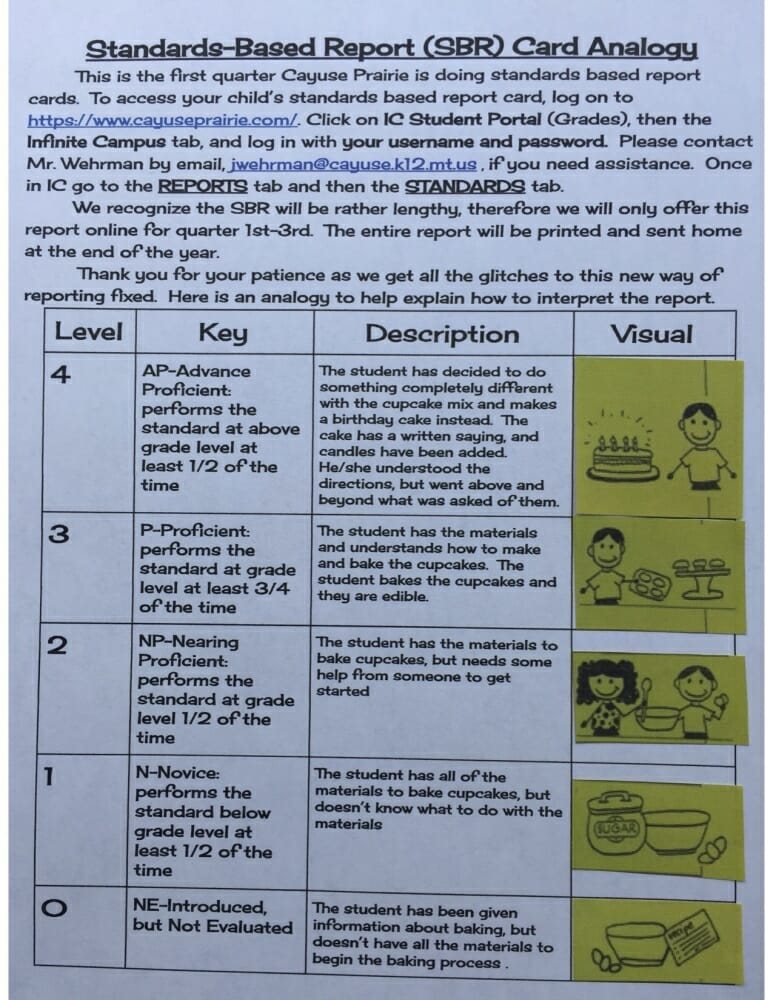
If you need assistance setting or resetting your username and password, please call Mrs. Moses @ X 233 or Mrs. Harp @ X 210.
How to Pay Fees in Infinite Campus:
Log in to Infinite Campus, either via the Parent Portal app or through the desktop URL noted above. If you have never accessed the Parent Portal and do not know your username or password, please call the office or visit Mrs. Moses or Mrs. Harp at Open House to obtain access to your Parent Portal accounts. Please set up the app on your phone in advance contacting the office. The Getting Started Instructions are included in a link at the top of this page.
Once your students are visible in the Parent Portal, select the Fees menu item from the list on the left-hand side of the screen. You will see your children listed with any mandatory fees (i.e. tech fee). Click the Add to Cart Button to add the selected fees to your cart.
If you would like to pay for optional fees, such as the Open House Sports Physical, Court Support Athletic Fee, or this year's Yearbook, you may add those to your cart by clicking the Optional Payments button at the bottom of your screen.
If you have multiple students in your household, in the optional payments window, you may switch students by selecting the student-switch dropdown menu in the upper-right-hand corner of your screen.
For example: You have three students and you want to pay for one athletic fee, one sports physical, and three yearbooks in one transaction: First, select the mandatory Tech Fees for all students and add to cart. Next, click the "Optional Payments" button and add the items for the first student in your household to the cart. Then, use the student switch menu in the upper-right-hand corner to switch to the next student and add their optional items to the cart, etc., until you are ready to check out.
Please note: Food Payments are processed separately from Fees. You will find the Food Payments and Balance Information on your Parent Portal homescreen, listed separately from the Fees button.
 ARP ESSER Plan
Response Summary
Current Cayuse Prairie Elem, LE0317 ARP-ESSER Plan
Safe Return to School and Continuity of Services Plan

Website Copyright © 2024
Cayuse Prairie School.
Website Programming and
Hosting by Allied Computing.